Relay from any browser tab to armed tabs & desktop apps
When investigating an incident ticket, cloud console alert, or web documentation, you shouldn't have to copy, Alt-Tab, scrub secrets manually, and paste into every tool. Highlight inside your browser and press Ctrl+Shift+8 to protect and relay in one motion.
Support Ticket / Cloud Console
Highlight the text directly inside Chrome, Edge, or Brave and press Ctrl+Shift+8.
One Protected Payload
Detected emails, API keys, and custom terms are replaced locally in memory before routing.
Explicit Target Routing
How to relay from a browser tab to desktop & browser destinations
Follow these four steps to connect Browser Relay with SafeRelay Desktop and route protected text without leaving your active browser tab.
Enable Desktop Integration
Open the SafeRelay Browser Relay extension popup in Chrome, Edge, or Brave and turn on Desktop Integration while SafeRelay Desktop is running in your Windows system tray.
Arm Your Destinations
Arm any browser AI tab in the extension popup, and focus your target Windows app (such as Notepad, WordPad, or VS Code) and press Ctrl+Alt+T to arm it as a desktop destination.
Highlight & Press Ctrl+Shift+8
Select the text inside your source browser tab and press Ctrl+Shift+8. SafeRelay redacts sensitive values locally into placeholders like [EMAIL_1] and [OPENAI_KEY_1].
Review Inserted Text
The single protected payload is delivered to your armed browser tabs and armed desktop windows simultaneously. Inspect the inserted text in each input before submitting or saving.
Why Connected ≠ Armed Matters
In a typical developer or analyst session, you might have a dozen browser tabs open alongside an IDE, a notes window, and a terminal. Automatic broadcasting would be dangerous and noisy.
SafeRelay strictly separates connection from arming:
- Connected means SafeRelay sees the tab or desktop bridge is available.
- Armed means you explicitly authorized that specific tab or desktop window to receive the next protected payload.
- Insert-Only Guarantee: Even when an AI chat tab is armed, SafeRelay only populates the prompt input box. It never triggers Enter or clicks Send.
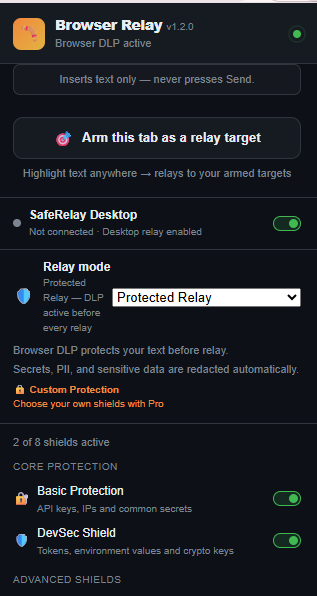
Browser Relay Extension Popup
Inside the Browser Relay popup, you can inspect armed browser tabs, toggle local DLP detector categories, and verify that Desktop Integration is connected to SafeRelay Desktop on localhost.