Relay from desktop apps to armed browser AI tabs
Working inside VS Code, Notepad, WordPad, or a Windows terminal? Highlight text right where you are and press Ctrl+Shift+9. SafeRelay redacts secrets locally and inserts the protected text directly into your armed browser AI tabs and armed desktop targets.
Local Config / Incident Notes
Highlight inside your desktop editor, notes app, or terminal and press Ctrl+Shift+9.
Protected Representation
SafeRelay Desktop transforms sensitive values locally before sending over the localhost bridge.
Simultaneous Protected Insert
Real Desktop-Origin Relay Capture
Watch how highlighting text inside a desktop window (WordPad) and pressing Ctrl+Shift+9 redacts sensitive values locally and relays the protected output simultaneously to an armed browser AI tab and an armed Notepad window.
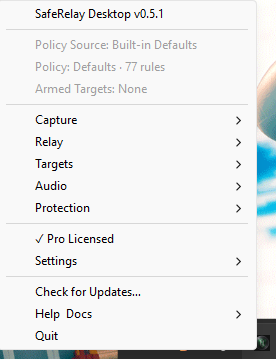
SafeRelay Desktop System Tray
SafeRelay Desktop runs quietly in your Windows system tray, managing global desktop hotkeys (Ctrl+Shift+9, Ctrl+Alt+T, Ctrl+Alt+V, Ctrl+Alt+R) and communicating locally with the Browser Relay extension.
How to run a Desktop-to-Browser relay
Start SafeRelay Desktop
Ensure SafeRelay Desktop is running in the Windows system tray and Desktop Integration is enabled in the Browser Relay extension popup.
Arm Your Browser AI Tab
Open ChatGPT, Claude, Gemini, or your web tool and click Arm in the SafeRelay Browser Relay popup. Optionally arm a desktop app with Ctrl+Alt+T.
Highlight in Desktop App
Select your code snippet, config block, or notes inside VS Code, Notepad, WordPad, or a terminal window and press Ctrl+Shift+9.
Inspect Protected Prompt
SafeRelay replaces detected secrets with placeholders like [OPENAI_KEY_1] and inserts the protected text into your armed browser tab without pressing Enter.
Choosing the Right Desktop Shortcut: Ctrl+Shift+9 vs Ctrl+Alt+R vs Ctrl+Alt+V
SafeRelay Desktop gives you three complementary ways to move protected text from desktop sources:
Desktop-Origin Cross-Relay
Starts from your currently highlighted desktop text, applies local DLP protection, and relays to armed browser tabs (when Desktop Integration is on) and armed desktop targets.
SelectionRelay
Starts from your currently selected text in a desktop app, runs local protection, and sends directly to your armed desktop target without manual copy-pasting.
AppRelay Paste
Starts from existing clipboard content (does not copy a new selection), applies local protection, and pastes into your armed desktop target.